
Migration to signal inputs
Angular introduced an improved API for inputs that is considered production ready as of v19. Read more about signal inputs and their benefits in the dedicated guide.
To support existing teams that would like to use signal inputs, the Angular team provides an automated migration that converts @Input fields to the new input() API.
Run the schematic using the following command:
ng generate @angular/core:signal-input-migrationAlternatively, the migration is available as a code refactor action in VSCode. Install the latest version of the VSCode extension and click on an @Input field. See more details in the section below.
What does the migration change?
@Input()class members are updated to their signalinput()equivalent.- References to migrated inputs are updated to call the signal.
- This includes references in templates, host bindings or TypeScript code.
Before
import {Component, Input} from '@angular/core';

@Component({
  template: `Name: {{ name ?? '' }}`,
})
export class MyComponent {
  @Input() name: string | undefined = undefined;

  someMethod(): number {
    if (this.name) {
      return this.name.length;
    }
    return -1;
  }
}
After
import {Component, input} from '@angular/core';

@Component({
  template: `Name: {{ name() ?? '' }}`,
})
export class MyComponent {
  readonly name = input<string>();

  someMethod(): number {
    const name = this.name();
    if (name) {
      return name.length;
    }
    return -1;
  }
}
Configuration options
The migration supports a few options for fine tuning the migration to your specific needs.
--path
By default, the migration will update your whole Angular CLI workspace. You can limit the migration to a specific sub-directory using this option.
--best-effort-mode
By default, the migration skips inputs that cannot be safely migrated. The migration tries to refactor code as safely as possible.
When the --best-effort-mode flag is enabled, the migration eagerly tries to migrate as much as possible, even if it could break your build.
--insert-todos
When enabled, the migration will add TODOs to inputs that couldn't be migrated. The TODOs will include reasoning on why inputs were skipped. E.g.
// TODO: Skipped for migration because:
//  Your application code writes to the input. This prevents migration.
@Input() myInput = false;
--analysis-dir
In large projects you may use this option to reduce the amount of files being analyzed. By default, the migration analyzes the whole workspace, regardless of the --path option, in order to update all references affected by an @Input() migration.
With this option, you can limit analysis to a sub-folder. Note that this means that any references outside this directory are silently skipped, potentially breaking your build.
VSCode extension
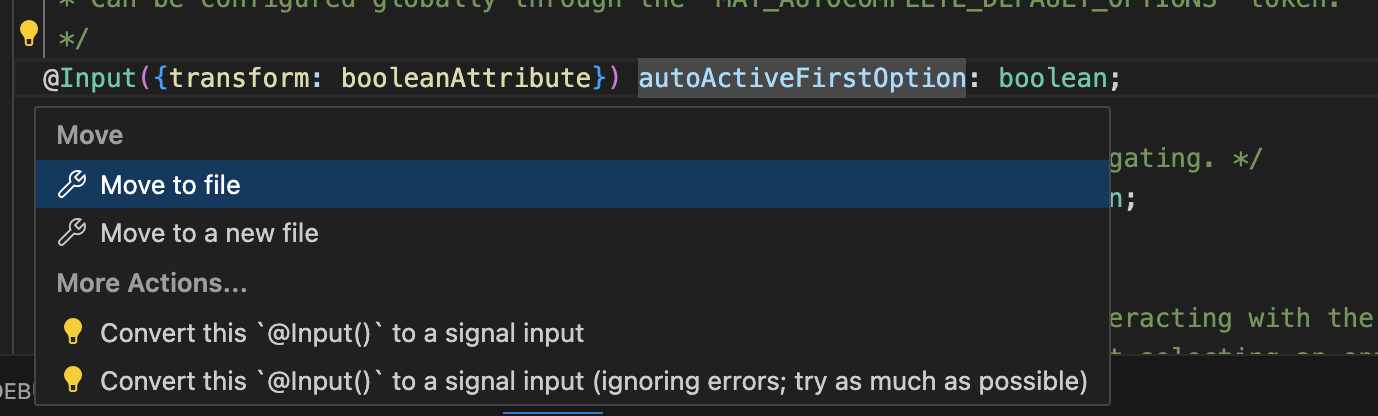
The migration is available as a code refactor action in VSCode.
To make use of the migration via VSCode, install the latest version of the VSCode extension and either click:
- on a
@Inputfield. - or, on a directive/component
Then, wait for the yellow lightbulb VSCode refactoring button to appear. Via this button you can then select the signal input migration.